> ## Documentation Index
> Fetch the complete documentation index at: https://docs.useocular.com/llms.txt
> Use this file to discover all available pages before exploring further.
# Issues
> Review, Approve, and Manage Annotations
Ocular's annotation review features allows you to ensure the quality of annotations before they are added to the final dataset. This process involves approving or rejecting annotations and requesting changes if necessary.
#### Review Mode
After annotating a job, you'll see buttons in the top right corner of the job page. Click "Review" to enter the Canvas in Review mode.
* Note: You can bypass review mode and add frames directly to the dataset, but this is not recommended.

#### Review Mode Canvas Sidebar
In Review mode, annotations tagged as "pending" appear in the left sidebar, indicating they await review.
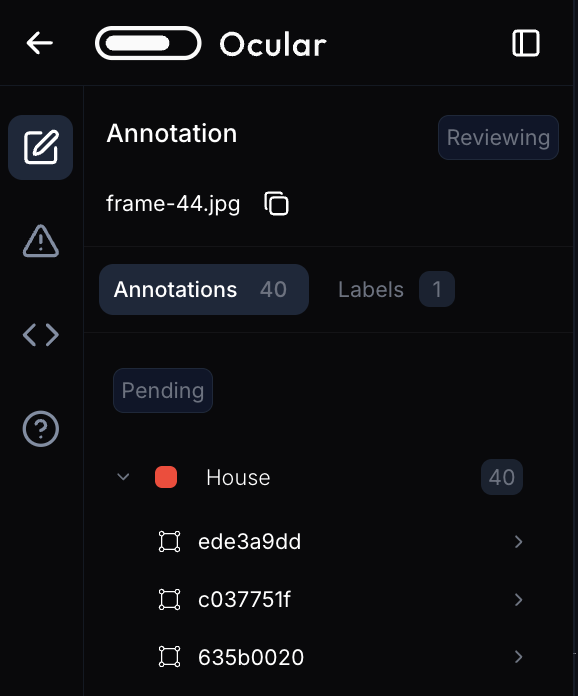
To review an annotation, click it in the sidebar to access the detailed view:
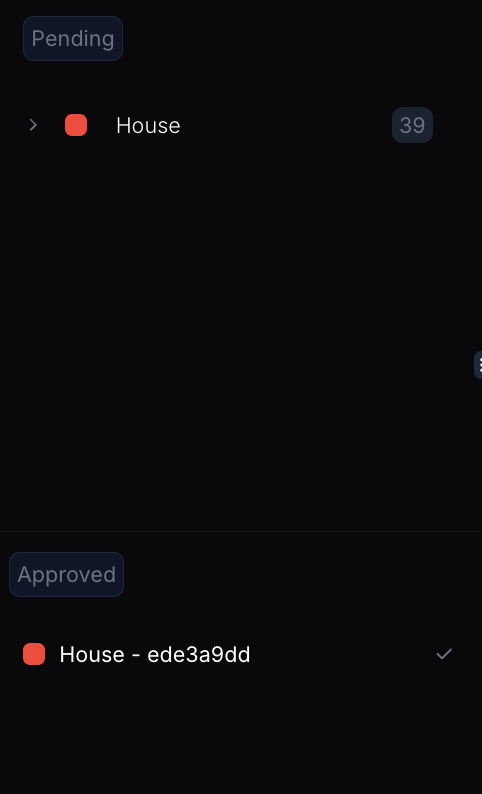
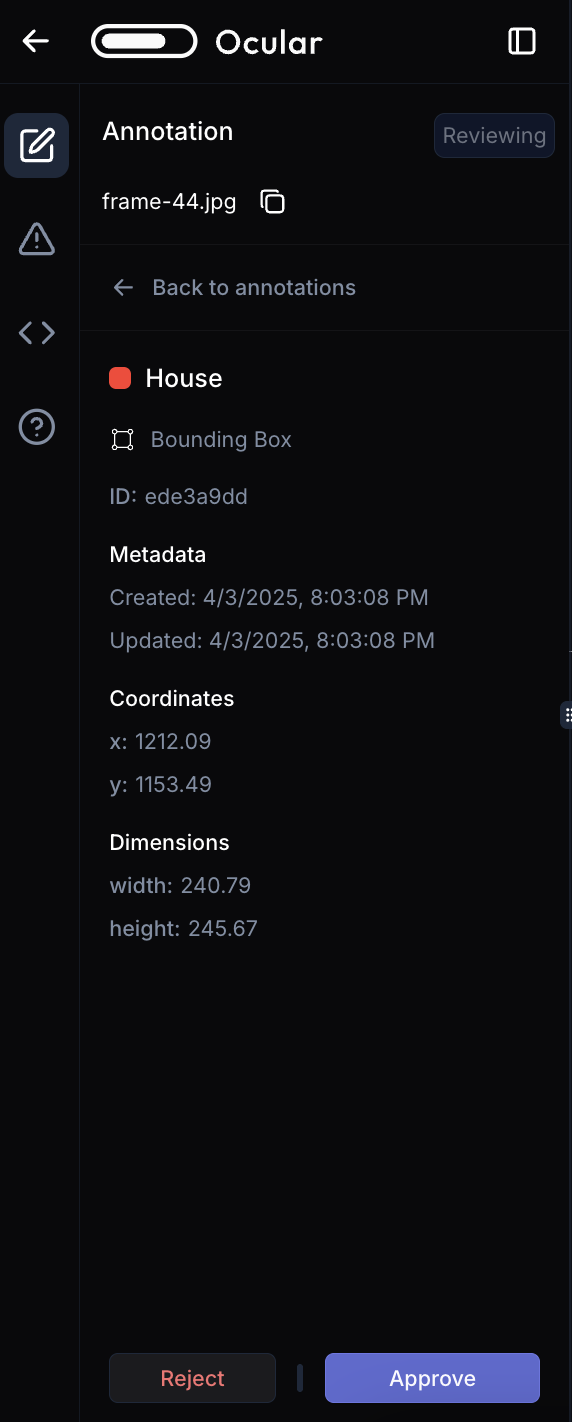 Choose "Reject" or "Approve."
If approved, the annotation moves to the "Approved" section on the main screen.
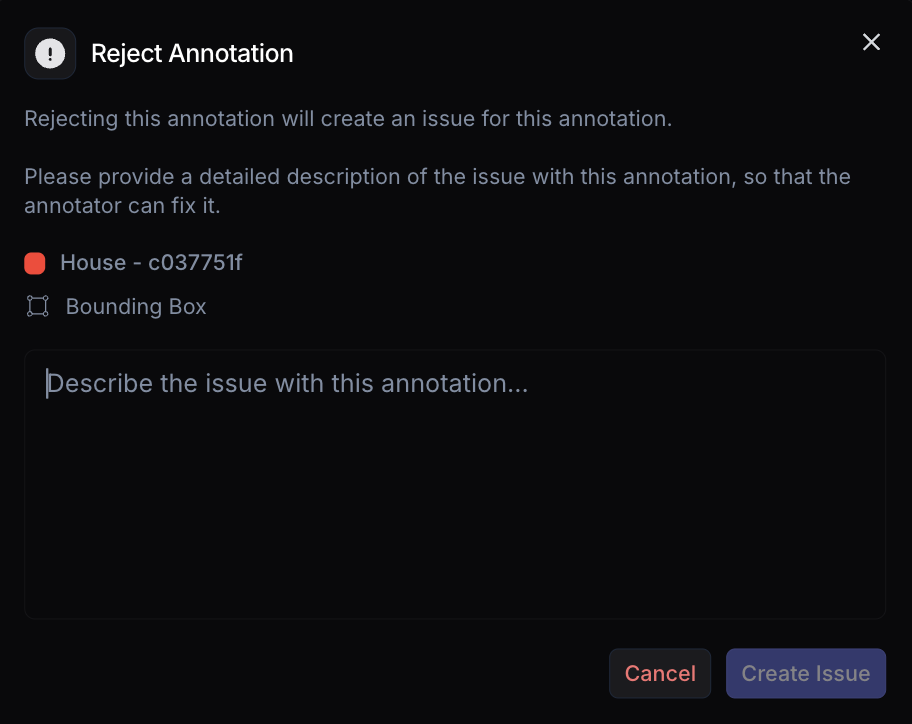
 If rejected, provide an explanation in the popup, creating an issue:
#### Issues Tab
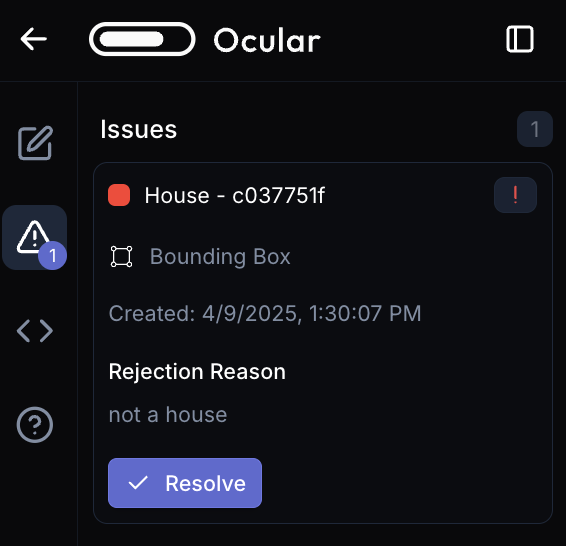
Rejected annotations appear in the "Issues" tab in the sidebar. You or the original annotator can resolve them once changes are made:
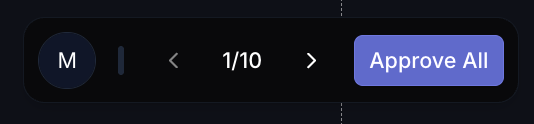
 To approve all annotations in a frame at once, use the button in the top right corner:
 After reviewing all frames, use the back button to return to the jobs page and add images to the dataset.