> ## Documentation Index
> Fetch the complete documentation index at: https://docs.useocular.com/llms.txt
> Use this file to discover all available pages before exploring further.

# Canvas Core Functionality

> A guide to essential features of the Infinite Canvas

### Core Features:

* **Collapsible Sidebar**: A single sidebar with vertical tabs for different views, similar to VS Code's left sidebar layout. Easily see current annotations, issues and raw data in different tabs.

<img src="https://mintcdn.com/ocularai/FeaFuA3bMytYuXie/images/canvas/canvas.png?fit=max&auto=format&n=FeaFuA3bMytYuXie&q=85&s=7501b45ca3c656e27c66dac5cff09efb" alt="Canvas Pn" width="4320" height="2268" data-path="images/canvas/canvas.png" />

<br />

* **Collapsible Image Carousel**: Preview and switch between frames in a job with a collapsible carousel along the bottom

<img src="https://mintcdn.com/ocularai/FeaFuA3bMytYuXie/images/canvas/image-carousel.png?fit=max&auto=format&n=FeaFuA3bMytYuXie&q=85&s=b1fcb34ee4d7c2692bee1fe6d312bfa1" alt="Image Carousel Pn" width="16384" height="10572" data-path="images/canvas/image-carousel.png" />

<br />

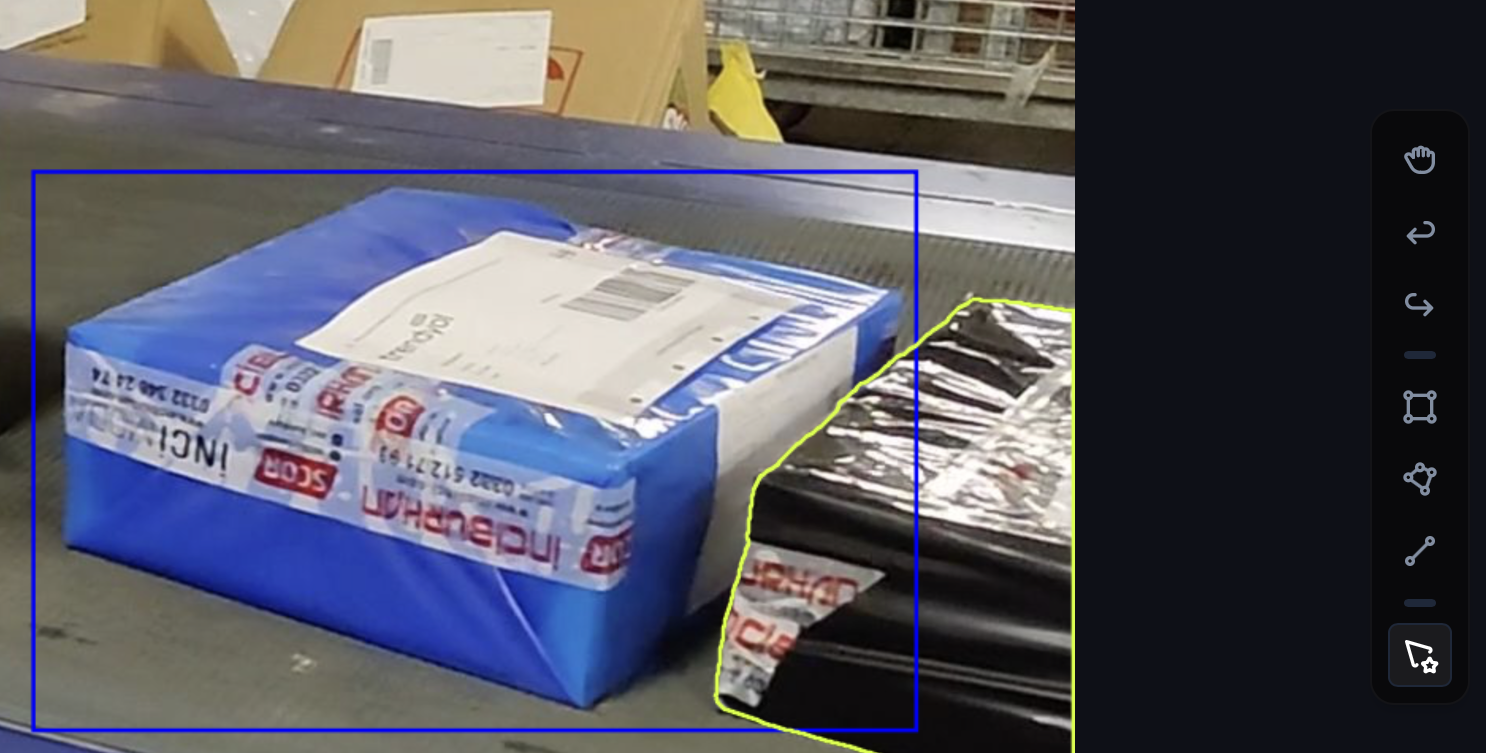
* **Toolbar**: Annotation tools are located on the right side of the canvas. Use the grab tool (top) to move the image around the canvas or reposition existing annotations. In the second section, use the bounding box, polygon, or line tool. In the last section, use the "Smart Polygon" tool to make auto-segmentations using SAM2.
<img src="https://mintcdn.com/ocularai/FeaFuA3bMytYuXie/images/canvas/toolbar-only1.png?fit=max&auto=format&n=FeaFuA3bMytYuXie&q=85&s=ba373935439039ff071441850b9332a0" alt="Toolbar Only1 Pn" width="1486" height="753" data-path="images/canvas/toolbar-only1.png" />

<br />

* **Controls**: Zoom and image adjustment tools can be found at the top of the canvas

<img src="https://mintcdn.com/ocularai/FeaFuA3bMytYuXie/images/canvas/canvas-view-1copy.png?fit=max&auto=format&n=FeaFuA3bMytYuXie&q=85&s=7a814d129e00e03dcd40fd583f883ae7" alt="Canvas View 1copy Pn" width="925" height="133" data-path="images/canvas/canvas-view-1copy.png" />

<br />

* **Progress and Completion**:  job progress indicators and the "done" button are in the top right corner of the canvas
  * Mark an image as done when you have finished making all annotations. You can then progress to the next image using the arrows or by clicking on a preview thumbnail in the bottom carousel.

<img src="https://mintcdn.com/ocularai/FeaFuA3bMytYuXie/images/canvas/donebar.png?fit=max&auto=format&n=FeaFuA3bMytYuXie&q=85&s=03764969c972242dc1b6b1908651b1dc" alt="Donebar Pn" width="2513" height="479" data-path="images/canvas/donebar.png" />
