> ## Documentation Index
> Fetch the complete documentation index at: https://docs.useocular.com/llms.txt
> Use this file to discover all available pages before exploring further.
# Canvas Agent
> Use models to speed up data annotation on the canvas
# Canvas Agent Overview
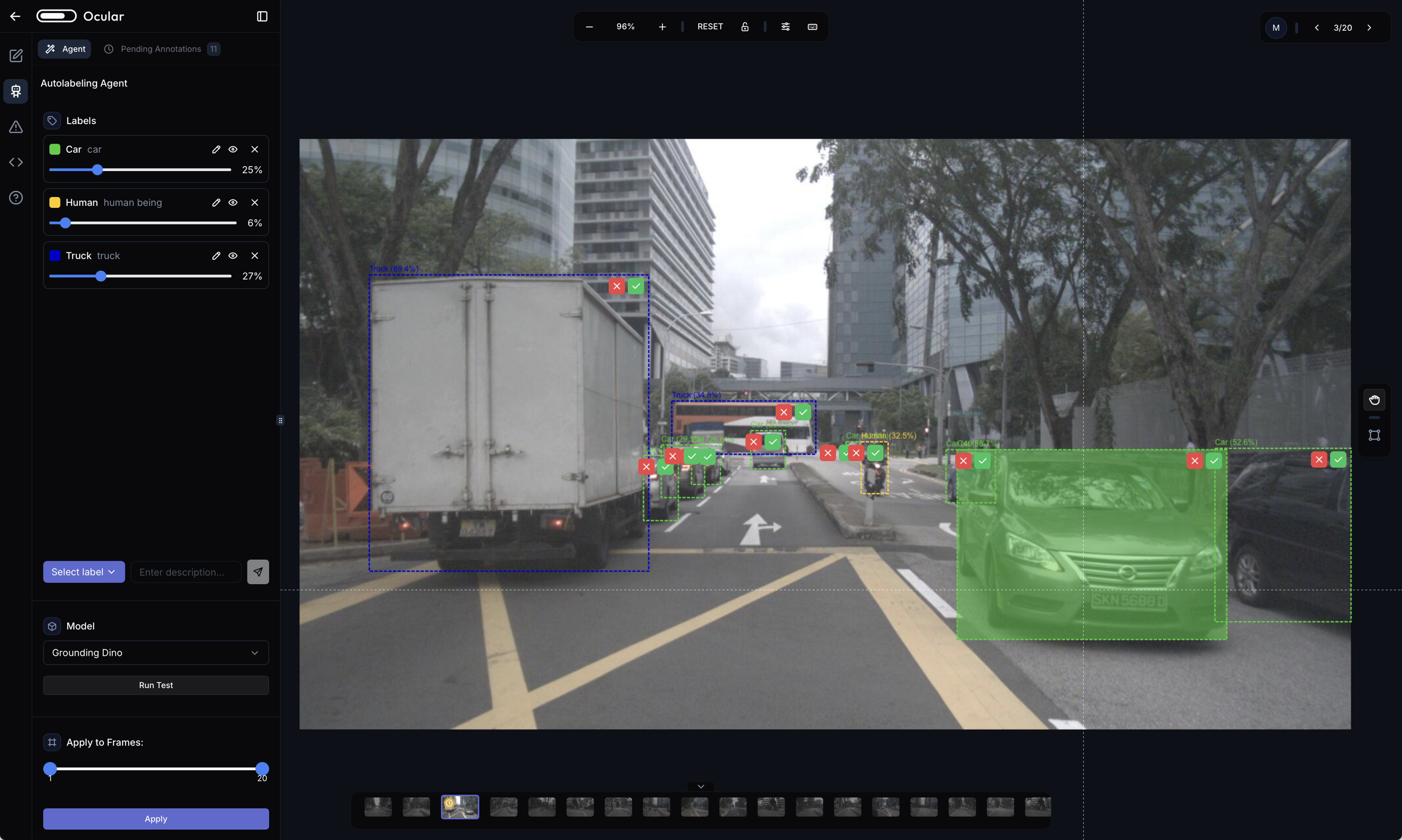
The Canvas Agent provides an interactive way to auto-label specific frames directly on the Infinite Canvas,
augmenting your manual annotation efforts with AI assistance.
## Introduction
While we can create fully auto-annotated jobs as shown on [Auto Annotate Jobs](/annotation/auto-annotation/auto-label-job), we can also choose to auto-label specific frames directly on the Infinite Canvas.
## Features and Usage
We've added a new "Agent" tab to the left sidebar which provides an agent-like interface where you can:
* Add labels and descriptions
* Customize confidence scores
* Test on a single frame
* Apply configuration to multiple frames in the current job
 ## Best Practices
For optimal results:
* Always have a human review the automatically generated annotations
* Adjust auto-generated annotations when necessary to ensure quality
* Use confidence scores as a guide for prediction reliability
## Best Practices
For optimal results:
* Always have a human review the automatically generated annotations
* Adjust auto-generated annotations when necessary to ensure quality
* Use confidence scores as a guide for prediction reliability